Timing, Spacing and Easing in Animation
Why does one move feel heavy and another light? Learn timing, spacing, easing curves and the graph editor, with frame-based examples and exercises.

Timing and easing in animation decide whether the same movement feels heavy or light, calm or nervous, believable or mechanical. An object traveling between the same two points can mean something completely different depending on how many frames the move takes and how its speed is distributed across those frames. This guide covers three linked ideas: timing (how long a move takes), spacing (where the object sits on each frame) and easing (how the speed changes), then moves on to the graph editor and rhythm with music. It is part of the complete guide to animation and motion graphics.
Frames and frame rates
A frame is a single image in the sequence that creates motion, and the frame rate is how many of those images play each second. The common rates are:
- 24 fps: the traditional cinematic feel, and common in drawn animation.
- 25 fps: the broadcast standard in countries that follow the PAL system.
- 30 fps (29.97 technically, in broadcast): common for online content and in countries that follow the NTSC system.
- 60 fps: smoother motion, used for screen recordings, games and some interface demos.
Choose the rate at the start of the project and stick to it. Ask whoever will show the work (a channel, a platform, an exhibition screen) for their requirements before you begin, because converting between 25 and 30 after the fact causes stutter or duplicated frames. Train yourself to think in frames rather than seconds: at 25 fps a frame lasts 40 milliseconds and half a second is 12 or 13 frames. At 24 fps a frame lasts about 42 ms, and at 60 fps about 16.7 ms.
In hand-drawn work, animating "on ones" means a new drawing every frame, and "on twos" means each drawing is held for two frames. Twos are common for ordinary character movement; ones are preferred for fast action and camera moves, where stepping would be obvious.
Timing and spacing
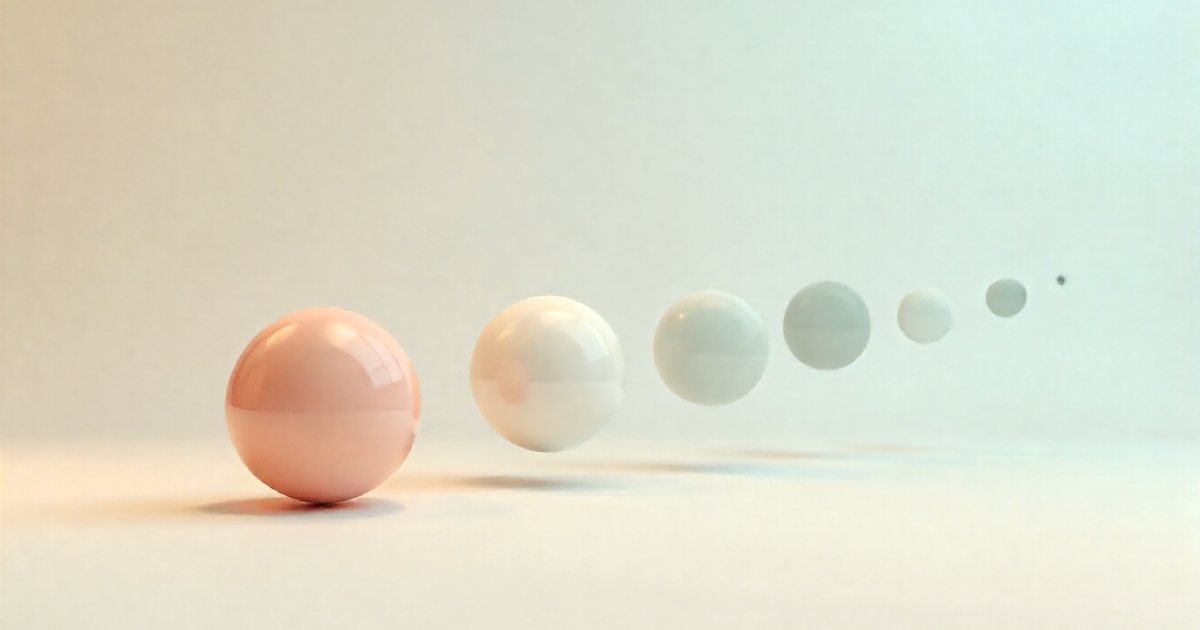
Timing is the number of frames between two key poses. Spacing is where the object sits on each frame in between. Two moves can share the same timing and feel completely different because of spacing alone.
Example: a ball travels 500 pixels in 10 frames. If it covers 50 pixels on every frame, its speed is constant from start to finish and it looks like it is running on a mechanical track. If it starts with small gaps, spreads out in the middle and bunches up again near the end, it looks like a real object starting and stopping. The simple rule: close spacing means slow, wide spacing means fast.
Timing also communicates weight, nature and mood:
- Heavy objects need more frames to get going and to stop; light ones start quickly and are affected by air resistance, like a falling leaf.
- A move that is too short can pass unnoticed; one that is too long feels lazy or dull.
- An excited character moves with faster timing than a tired one, even over the same distance.
Easing
Easing describes how speed changes during a move. The basic types are:
- Linear: constant speed from start to end. It looks mechanical, but it is right for continuous motion such as a scrolling ticker, a spinning fan, a circular loading indicator, or an element that crosses the frame without stopping.
- Ease out (decelerate): starts fast and slows before stopping. Good for elements that enter the scene and settle into place.
- Ease in (accelerate): starts slowly and speeds up. Good for elements that leave the scene.
- Ease in-out: slow at both ends, fast in the middle. Good for an element moving from one place to another inside the frame.
The strength of the ease matters as much as its type. A gentle ease feels calm and soft; a strong ease feels sharp and contemporary. But strong easing on both ends of every move makes the whole piece feel floaty and indecisive.
The graph editor
Every serious animation program includes an editor that shows motion as a graph: time runs along the horizontal axis, and value or speed runs up the vertical axis. In Blender the curves are called F-Curves; in Maya and After Effects the tool is called the Graph Editor. After Effects in particular lets you switch between two kinds of graph.
The value graph
It shows a property's value, such as position or scale, over time. The slope of the curve is the speed. A straight diagonal line means constant speed. A curve that starts flat, steepens and flattens out again (an S shape) means acceleration followed by deceleration. A horizontal line means the object is still. The steeper a section, the faster the motion there.
The speed graph
It shows speed itself over time. An eased move appears as a hill: speed rises and then falls. A tall, narrow peak means a quick, snappy move; a low, wide hill means a smooth, relaxed one. The area under the curve represents distance traveled, so if you raise the peak without changing the distance, the hill gets narrower.
Handles and separate dimensions
Bezier handles shape the curve: the longer the handle, the stronger the ease. When an object moves along a curved path or bounces, separating dimensions (animating the horizontal and vertical axes independently) lets you give each axis its own curve, which produces more convincing arcs and jumps.
A practical workflow many animators use: block in the key poses with stepped or linear keys, check the overall timing, then refine the curves, and finally add polish such as overlap and overshoot.
Overshoot and settle
Real objects do not stop dead. A fast-moving object passes its target slightly, comes back and settles, sometimes with a second, smaller wobble before it rests. That small detail gives motion elasticity and life, and it is closely related to the follow-through and overlapping action principle described in the 12 principles of animation.
Three things control overshoot: amplitude (how far past the target the object travels), frequency (how many bounces), and decay (how quickly the motion calms down). You can build it with manual keyframes, one for the overshoot and one for the settle, or with expressions and plugins that calculate inertia automatically.
Match the amount to the brand's personality. A gaming app or a children's brand can carry a visible bounce; a bank or a clinic suits a very slight overshoot or none at all. Avoid bouncing every element in the scene, and long text in particular, because it disrupts reading.
Holds
A hold is time when an element stays still so the viewer can absorb what they have seen, and it matters as much as the motion itself. In the graph editor it appears as a flat line, and a hold keyframe lets a value change instantly with no transition at all.
- Moving holds: in character animation a completely frozen pose looks dead, so animators leave a slight drift or a small breath to keep the character alive.
- Reading time: keep text on screen long enough to read it twice at a relaxed pace. Arabic and English versions differ in length, so test each one separately, and test on a phone screen rather than a large editing monitor.
- One idea at a time: show the information, pause, then move on. Constant motion with no rest tires the eye and loses the message.
Rhythm and syncing motion to music
Rhythm is the pattern of fast and slow, motion and rest. A piece in which every move lasts the same time feels monotonous. Deliberate variation between snappy moves, slower ones and short pauses creates a sense of life and progression.
When working with music, calculate the number of frames per beat:
Frames per beat = frame rate × 60 ÷ tempo in BPM
- A 120 BPM track at 24 fps: exactly 12 frames per beat.
- The same track at 25 fps: 12.5 frames, so beats alternate between 12 and 13 frames.
- The same track at 30 fps: 15 frames per beat.
Drop markers on the strong beats while the music plays, and land the important moments on them: scene changes, the logo impact, the key line appearing. Do not tie every element to every beat, or the piece turns into constant jitter. Some animators like the motion to lead the beat by a frame or two so it feels in sync to the viewer; try it and trust your eyes. Choosing music and sound effects is covered in sound design for motion graphics.
Common mistakes and how to avoid them
- One curve for everything: using the same default ease on every move makes the work monotonous. Shape each curve to the job the move is doing.
- Everything moving at once: the visual hierarchy disappears. Offset start times by a few frames so one element leads the next.
- Motion faster than reading: review the work at its real size on a phone, not blown up on the editing monitor.
- Overdone easing on both ends: motion floats without resolve. Make one end shorter and more decisive.
- Changing frame rate mid-project: causes stutter that is hard to fix later.
In website and app interfaces the same principles apply, but with much shorter durations and different, functional goals. Motion design in websites and apps explains how.
Exercises and a practical checklist
Exercises that build your sense of timing:
- Move a square the same distance three times: linear, then with ease out, then with overshoot and settle. Compare how each one feels.
- Animate a ball bouncing three times, with each bounce lower and shorter than the last.
- Drop a logo and let it settle in 20 frames, then in 30, and notice the difference in perceived weight.
- Sync four shapes to a 120 BPM track.
Before delivery, check that:
- The frame rate matches the requirements of whoever will show the work.
- Every move has a curve that serves its purpose, not one default curve.
- Text stays on screen long enough to read in both Arabic and English.
- Overshoot and bounce suit the brand's personality.
- Key moments land on the strong beats of the music.