Organizing a Video Editing Project and Its Files
A fixed folder template, clear naming rules, 3-2-1 backups and a handoff package any colleague can open: everything an organized edit needs.
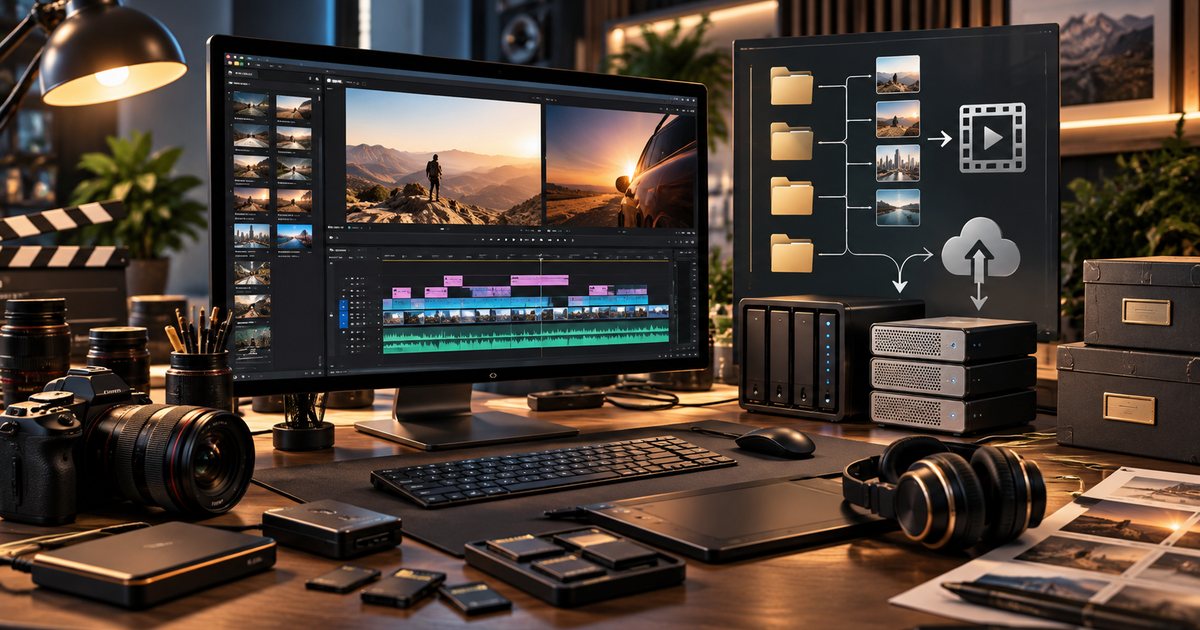
Organizing a video editing project is what separates an editor who finds any shot in seconds from one who loses hours hunting for a missing file or guessing which of three "final" versions is the latest. Organization starts before you open the editing software, the moment you copy the camera cards, and it continues until the project is archived after delivery. This guide gives you a working system: folder structure, naming rules, bins, proxies, backups, versioning and handing a project to a colleague or client.
Why organization is worth your time
Organization can look like admin that slows down the creative work, but it actually protects your creative time. Picture a simple 60-second ad: footage from two cameras and a phone, voice-over in Arabic and English, licensed music, logos and motion graphics, then more than ten deliverables in different sizes for different platforms. Without a clear system, the familiar problems appear:
- Media offline errors because someone moved or renamed a folder.
- The wrong version goes to the client because the names look alike.
- No way to revise a year later when the client asks for a new cut and nobody knows where the files are.
- Painful teamwork, because everyone organizes files their own way.
If you are new to editing in general, start with Video Editing: The Complete Beginner's Guide and apply this system from your very first project.
A standard folder structure for every project
Create an empty folder template once and copy it at the start of every project. Name the root folder with the start date, client and project, for example 2026-03_AlNoor_RamadanAd (names in these examples are illustrative). Inside it:
- 01_Project: editing project files and autosaves.
- 02_Footage: original camera files, organized by shoot day, then camera, then card, such as Day01, CamA, A001.
- 03_Audio: location sound, voice-over, music and sound effects, each in its own subfolder.
- 04_Graphics: logos, lower thirds, motion graphics files and a list of the fonts used.
- 05_Stills: photos, screenshots and visual references.
- 06_Docs: the brief, script, shot list, interview transcripts, release forms and music licenses.
- 07_Exports: with subfolders for review copies, approved versions and high-quality masters.
- 08_Cache: proxies and cache files, ideally on a fast drive, since they can be deleted and regenerated.
Number prefixes keep the order fixed on every operating system, and using the same template on every job means anyone on the team can find any file without asking.
Copying camera cards properly
- Copy the whole card with its folder structure, not just the video files. Some camera formats depend on accompanying folders and metadata files.
- Use a verified copy (checksum verification) that compares the copy with the original after transfer. DaVinci Resolve's clone tool does this, as do dedicated card-offload apps.
- Never format a card until two copies exist on two different drives.
- Don't rename camera files after importing them into a project. If you need new names, rename during the offload, before import; renaming later breaks the link between the project and its media.
File naming rules
A good name tells you what a file is before you open it. The core rules:
- Use only Latin letters, numbers, hyphens and underscores in file names, even on Arabic projects. Avoid spaces, symbols and Arabic characters, because some tools, servers and operating systems handle them unpredictably. Arabic content inside the file is fine.
- Write dates as year-month-day (2026-03-15) so files sort chronologically on their own.
- Pad version numbers with zeros: v01, not v1, so that v10 sorts after v09.
- Keep a fixed order of elements: client, project, content, duration, aspect ratio, language, version.
| File | Weak name | Clear name |
|---|---|---|
| Review cut | final new 2.mp4 | AlNoor_Ramadan_30s_16x9_AR_v03.mp4 |
| Voice-over | voice ahmed.wav | AlNoor_Ramadan_VO_AR_take02.wav |
| Vertical version | reel FINAL final.mp4 | AlNoor_Ramadan_15s_9x16_EN_v01.mp4 |
Organizing inside the editing software
Premiere Pro and DaVinci Resolve organize media in bins, while Final Cut Pro relies on events and keywords. Whatever you use, mirror the folder structure on disk and add:
- A timelines bin with version numbers in every sequence name.
- A selects bin for the best shots and subclips.
- Grouping by scene or topic for documentaries, and by speaker for interviews.
- Color labels with fixed meanings, such as green for approved shots and red for unusable ones.
- Markers with comments inside long clips to flag important moments.
- String-outs: sequences that contain a whole shoot day or a full interview so you can review it quickly.
Organize your tracks too
Use the same track layout on every project: video track one for main footage, two for B-roll, three for text and graphics. For audio: two tracks for dialogue, two for voice-over, two for effects and two for music. A consistent layout makes the mix much easier, as Audio in Video: Dialogue, Music and Effects explains, and it makes handoffs painless.
Proxies
Proxies are lighter copies of your original footage, at lower resolution and in a codec that is easy to play back, such as ProRes Proxy or DNxHR LB. You edit with them, and the software switches back to the originals for grading and export.
When do you need them?
- When you edit 4K or higher-resolution footage.
- With heavily compressed footage that is hard to decode, such as H.264 or H.265 files from phones and many cameras.
- With RAW footage, multi-camera edits, or a modest computer.
Rules that prevent trouble:
- Make each proxy match its original in name, frame rate, duration, number of audio channels and aspect ratio, or relinking will fail.
- Store proxies in the cache folder, not next to the originals.
- Before grading and the final export, confirm the software is using the original files.
Each program creates and manages proxies differently; Video Editing Software: A Practical Comparison looks at the common options.
Backups: the 3-2-1 rule
The widely used rule for protecting data: three copies of every important file, on two different types of storage, with one copy off-site (in a cloud service or at another location).
- A mirrored RAID is not a backup. It protects you from a failed drive, but it copies an accidental deletion or a corrupted file to the second drive instantly.
- Project files are small and extremely valuable, so copy them somewhere separate every day, and set autosave to short intervals while keeping several earlier versions.
- Test a restore now and then. A backup you have never tested may not work when you need it.
- Keep drives away from heat. In a Gulf summer, don't leave external drives in a parked car in the sun; every drive has temperature limits for operation and storage.
Versioning and feedback
- Save a new copy of the project file at each milestone: rough cut, fine cut, picture lock, approved version.
- Duplicate the timeline before any major change instead of overwriting it, and include the version number in its name.
- Name each export exactly like the timeline it came from, so you always know the source of any file the client sends back.
- Log feedback in a table: version, date, reviewer, timecode, note and status. Ask the client for one consolidated set of notes from a single person, with a timecode for each note.
- Respect picture lock. Once the edit is approved, grading, mixing and subtitling begin, and any later change to the cut means redoing part of that work.
Handing off and working as a team
The handoff package
When you pass a project to a colleague, a client or a sound studio, it should open on another machine without a single phone call. A good package includes:
- A consolidated project made with the software's project manager, containing only the media used plus handles of a second or two before and after each clip.
- Graphics and extras such as LUTs, with a list of the plug-ins required.
- A list of fonts used. Don't send the font files if their license doesn't allow it; list names and sources instead.
- Licenses for music and images, and talent release forms.
- A short handoff note stating the software and version, frame rate, resolution, color space, track layout and any open issues.
To move a timeline between programs there are interchange formats: XML to move an edit between editing applications, AAF to send it to an audio studio, and EDL for simple timelines. Always test the transfer before relying on it, because some effects don't survive the trip.
Working with a team
- One source of truth: shared storage or a synced cloud folder, not scattered copies on personal laptops that several people edit at once.
- Use the collaboration and project-locking features in your software so two people never edit the same file.
- Assign ownership: who manages graphics, who manages audio, who owns the master timeline.
- Review on a platform with timecoded comments instead of scattered messages across several apps.
- On bilingual projects, keep the Arabic and English versions in one project, with separate graphics folders per language and separate subtitle files, as covered in Subtitles and On-Screen Text.
Archiving when the project ends
Keep whatever you need to re-export or revise later:
- A high-quality master, plus a textless version that makes new language versions easy.
- The consolidated project file and the media it uses.
- Separate audio stems (dialogue, music and effects).
- Subtitle files, documents and licenses.
Proxies and cache files can go, because they can be regenerated. Video Export Settings covers suitable formats for masters. Store the archive in at least two copies, and keep a simple spreadsheet listing the project, its date, the drive that holds it and what it contains.
Practical checklist
- Did you create the project from the standard folder template?
- Was every card copied in full with verification, with two copies made before formatting?
- Do file and version names follow the same rules throughout?
- Are your bins and tracks organized in a way a colleague would understand?
- Is the software using the original files for grading and export?
- Is there a recent off-site backup, and have you tested restoring it?
- Are feedback notes and approved version numbers recorded in writing?
- Is the handoff package complete, with a handoff note, font list and licenses?