Design Software Compared: Professional Tools and Alternatives
No single program does everything. A comparison of design software categories and the common tools in each, with practical selection criteria and the file formats you need to work with others.
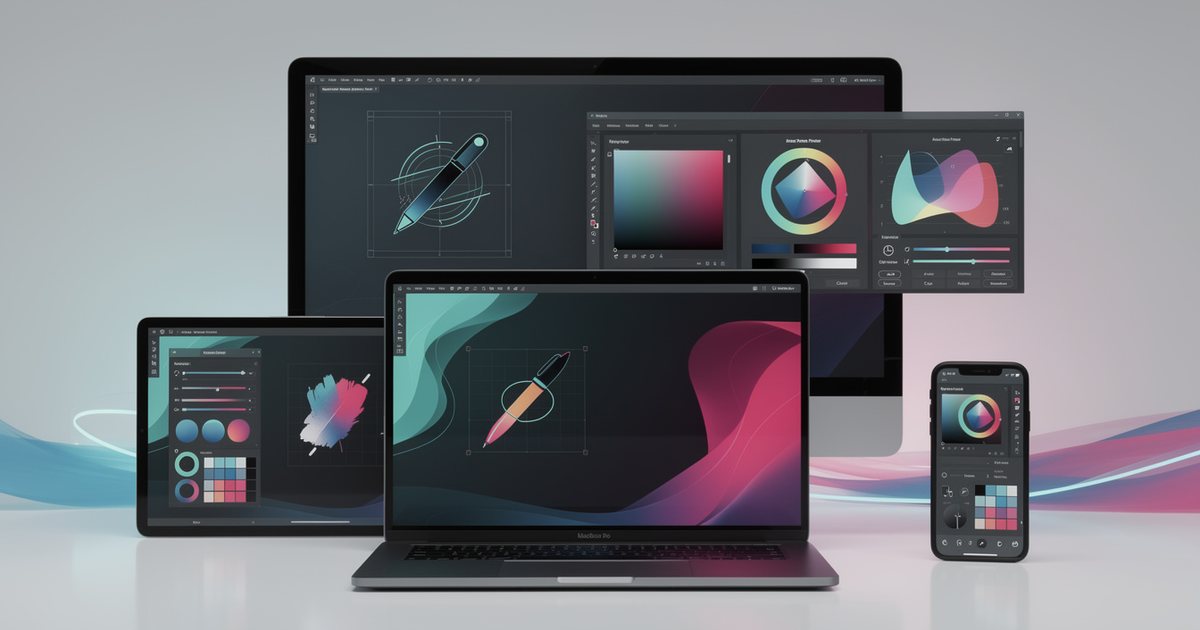
No single program does every job. Design software differs first in the kind of graphics it produces, then in how it handles teamwork, which file formats it exchanges, how it is licensed and how well it supports Arabic. So the useful question is not "what is the best program?" but "which program fits this kind of work, and who am I handing the file to?" This comparison covers the software categories, the common tools in each, and how to choose, with no rankings and no prices, since plans and pricing change constantly.
Categories before brand names
Understanding the category makes half the decision for you. If you are just starting out, read Graphic Design: The Complete Beginner's Guide first: principles travel with you from one program to the next, while menus and buttons change.
Raster editing
Raster images are made of pixels. They suit photographs, compositing several images, retouching, textures and effects. Their main weakness: enlarge them beyond their original size and they lose sharpness. Examples include Photoshop, Affinity and GIMP. The photo editing workflow itself is covered in Photo Editing: A Professional Workflow.
Vector drawing
Vector graphics are built from mathematical paths, so they stay sharp at any size. That makes them the natural home for logos, icons, illustrations, patterns and signage artwork. Examples include Illustrator, Affinity, Inkscape and CorelDRAW, which many print shops and sign makers in the region still use. Why a logo must be drawn as vector is explained in logo design principles.
Page layout
Layout programs are built for multi-page documents: master pages with repeating elements, text that flows from page to page, paragraph styles, automatic page numbers and tables of contents. They suit catalogs, company profiles, annual reports, restaurant menus and magazines. Examples include InDesign and Affinity, with Scribus as an open-source option.
Interface (UI) design
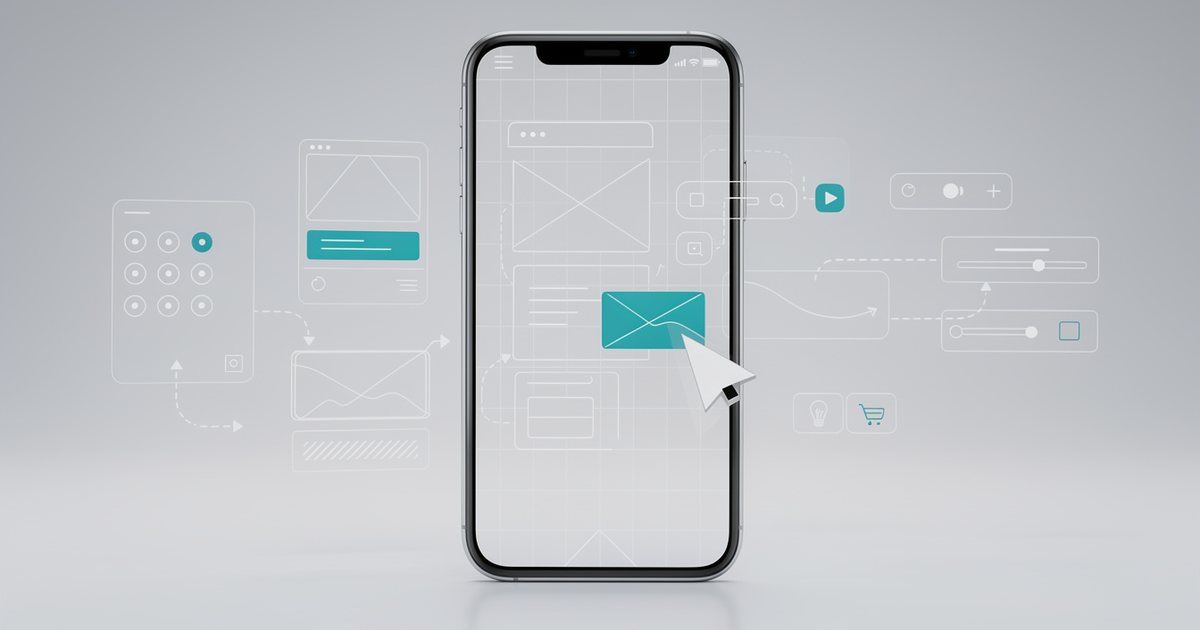
UI tools are built for designing website and app screens: reusable components, layouts that adapt to their content, clickable prototypes, shared comments, and handing measurements and colors to developers. Examples include Figma, Sketch (macOS only) and the open-source Penpot. The discipline itself is covered in UI and UX design fundamentals.
Template-based tools
A tool like Canva is built around templates, drag and drop, and a saved brand kit, which makes it good for quick posts and presentations made by non-designers. Its limits are fine control and professional print preparation, and there is a real risk of looking like thousands of other accounts using the same templates if you do not adapt them.
Quick comparison table
| Program | Category | Best suited to | Compatibility notes |
|---|---|---|---|
| Photoshop | Raster | Photo editing, compositing, social media graphics | PSD is widely exchanged between agencies and designers |
| Illustrator | Vector | Logos, icons, illustration, print artwork | Exports SVG, PDF and EPS |
| InDesign | Layout | Brochures, catalogs, company profiles | Exports PDF/X for print and IDML for sharing open files |
| Figma | UI | Websites, apps, prototypes, team collaboration | Runs in the browser; simplifies developer handoff |
| Affinity | Raster, vector and layout | An all-round option for individual designers | Imports formats such as PSD, with varying fidelity |
| Canva | Templates | Quick posts and presentations by non-designers | Check export options before relying on it for professional print |
| GIMP | Open-source raster | Photo editing and learning the basics | Print color management is simpler than in commercial tools |
| Inkscape | Open-source vector | Logos and web graphics | SVG is its native format; print prep needs extra care |
| CorelDRAW | Vector | Signage and print work | Ask the printer which format they accept |
The table is not a ranking. Each tool is strong in its own category, and the right choice depends on your work.
Selection criteria
- Your dominant type of work. Mostly posts and photos points to a raster tool; identities and logos to vector; brochures to layout; websites and apps to a UI tool.
- Who you exchange files with. Printers, agencies, developers and clients. A tool that reads their formats and exports what they need saves hours of conversion and fixing.
- Solo or team work. Teams that need live comments, version history and a single shared file benefit more from cloud tools than from local files sent by email.
- Arabic support. Before committing, type an Arabic paragraph with diacritics, numbers and an English word, test alignment and justification, export to PDF and PNG, and check that letters are joined and direction is correct. For cloud tools, check that you can upload your Arabic fonts and that their licenses allow it. The basics of choosing Arabic type are in Arabic fonts in design.
- Operating system and hardware. Some programs run on one platform only, heavy image editing needs enough memory and a capable graphics processor, and cloud tools need a stable connection.
- Licensing model. Subscription, perpetual license, limited free plan or open source. Compare the total cost over two or three years, and the number of seats your team needs, directly on the official sites.
- Learning curve and resources. A tool with plenty of tutorials and an active community, including Arabic content, shortens the time it takes to become productive.
File compatibility and exchange formats
Each program has a native format that keeps everything editable, such as PSD, AI and INDD, and there are exchange formats that almost everything reads, such as PDF, SVG, EPS, PNG and JPG, plus IDML for sharing open InDesign files.
Practical handover rules:
- Logo: vector SVG and PDF versions, plus transparent PNGs for quick use.
- Print files: PDF to the standard your printer requests. Details are in preparing print files.
- Web and social images: PNG, JPG or WebP at the required size.
- Editable handover: the native file with its fonts and linked images, or packaged using the layout program's package feature.
Agree on delivery formats at the start of a project, not at the end, and write them into the specifications section of your design brief.
Practical scenarios
- A freelancer starting out in social media design: a raster tool for photo editing and building posts, a vector tool for logos and graphic elements, and a UI tool if website work is likely.
- A small shop owner designing their own posts: a template tool with the brand's colors and fonts saved in it, while the logo and core identity are produced as vector files by a specialist.
- Company print collateral and a twenty-page profile: a layout program for the document, a vector tool for icons and graphics, and a raster tool for preparing photos.
- A team building a website or app: a shared UI tool where designer, developer and product owner work in the same file.
- A student on a tight budget: GIMP, Inkscape, Penpot or the free plans available. The principles transfer to commercial tools later.
If your work extends into motion and video, those are separate categories of software, covered in motion graphics and animation software and video editing software compared.
Common mistakes
- Designing a logo in a raster program, then discovering it cannot be used on a large sign or for embroidery.
- Building a catalog of dozens of pages in a single-page tool, so every change to numbering or text becomes painful.
- Leaving the software's default RGB settings in a design meant for print.
- Collecting many programs before mastering the fundamentals in one.
- Using unlicensed copies, which is both a legal and a security risk, since many carry malware. The same applies to unlicensed fonts.
- Relying on effects specific to one program that do not survive export or handover.
Next steps
- List the kinds of work you expect to do over the next six months, ordered by how often they come up.
- Identify the main category from that list and pick one program in it to learn properly before any other.
- Ask the people you work with, such as your printer, developer and clients, which formats they accept.
- Try the trial or free version on a small real project that includes Arabic text, then export and review it.
- Compare licensing models on the official sites and work out the total cost, not just the monthly figure.
- Add a second program from a different category when your work demands it, not before.